Managing users
Adding new users
On Django Admin, click on the
Userslink in theAccountssection.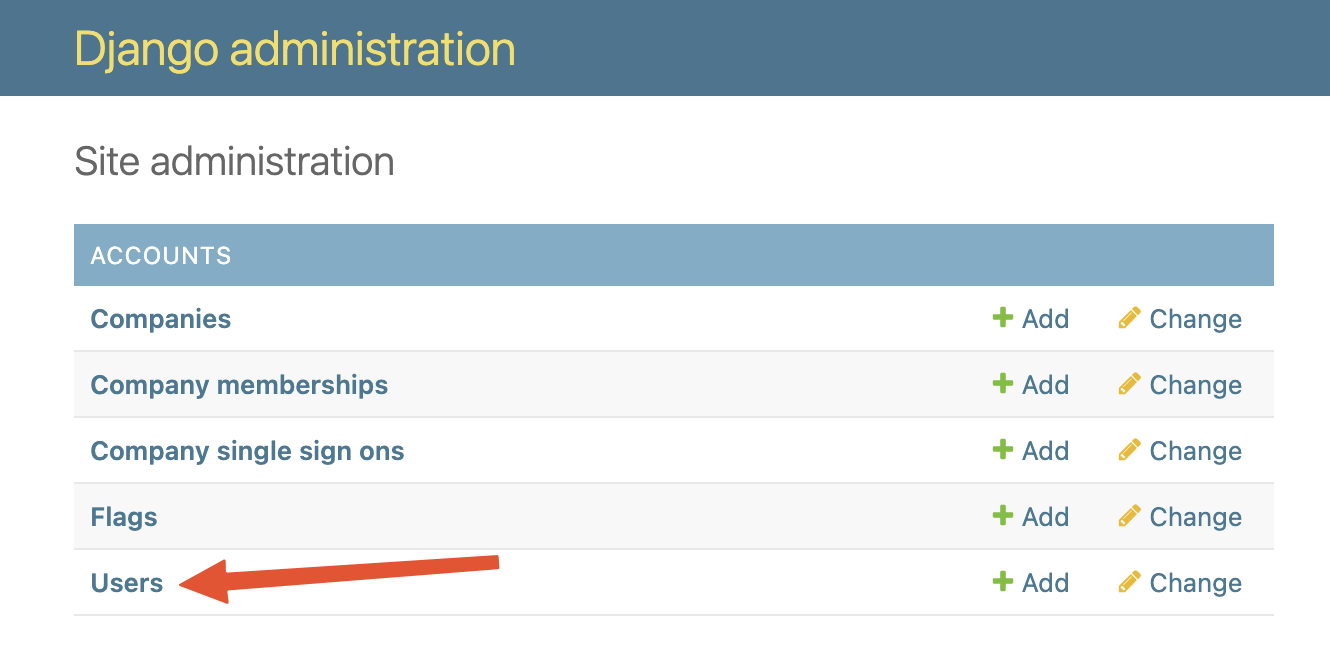
Download the CSV template to import users
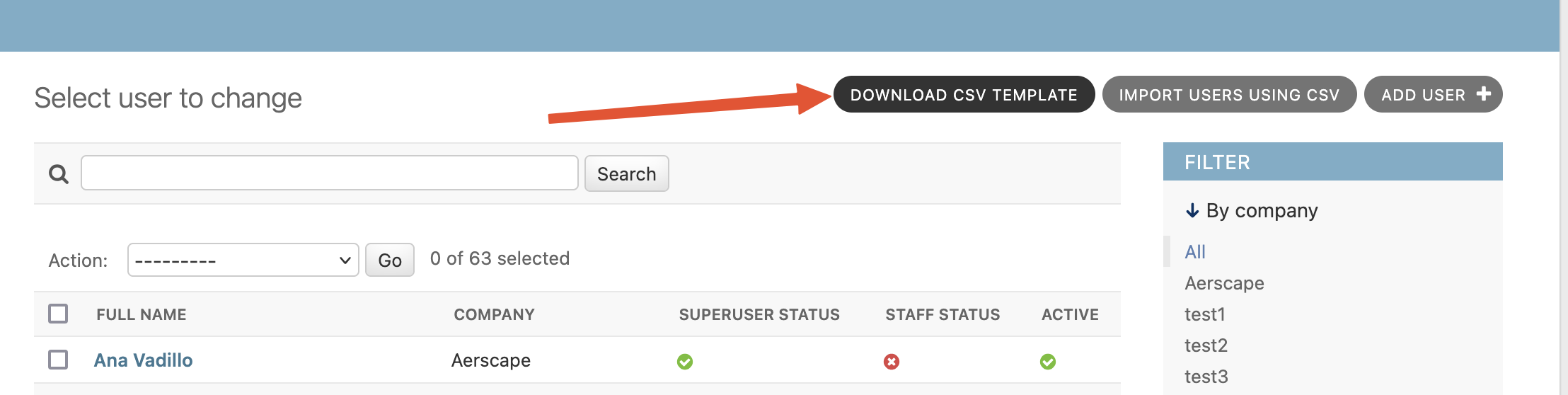
Fill out fields in CSV file.
Field name Contents company_nameCompany code used in Aerscape (X125, A432, etc). qa/qcNeeds to be yesotherwise the import will fail, used as an extra check.geofence_shapeAccepts a GeoJSON containing a polygon that delimits the area the user has access to. geofence_area_namesAs an alternative to the geofence_shape, this can be used to limit users to predefined areas in the platform. Valid area names can be found in Django admin inGEO_DATA→Filter itemssection and names need to be exact matches. See Adding and updating geo filter presets.Fields with _viewand_editGranular permissions control, they accept yesornovalues. Empty colums means no permissions.Go back to the Django Admin page and click
Import users using CSV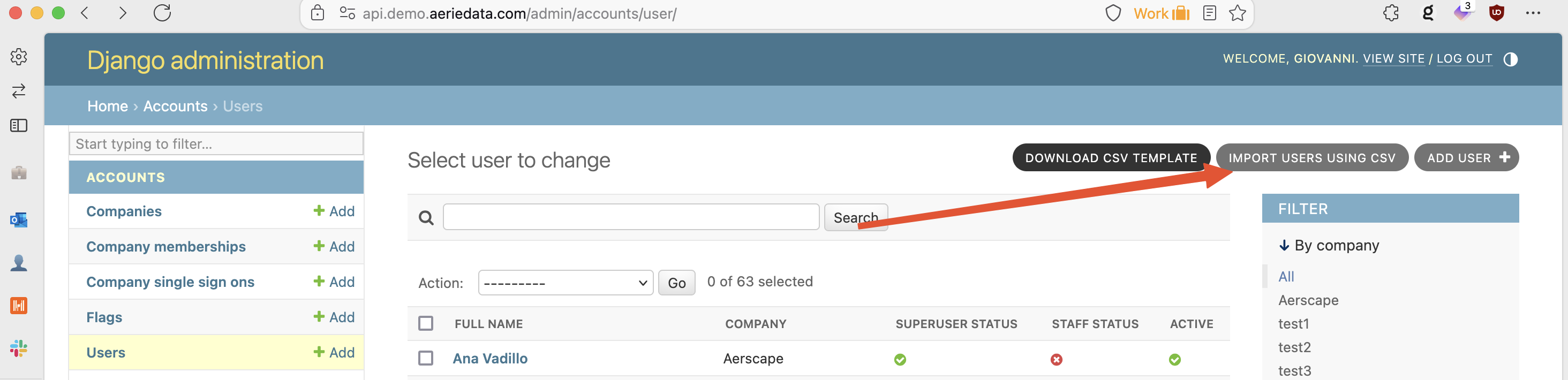
Select the CSV file in the input component and submit, the system will process the entries immediately and notify you if anything went wrong directly in the page.
CSV permissions converter
The CSV Permissions Converter tool can generate properly formatted CSV files for both creating users and updating permissions, including role-based permission mappings and geofencing options.
Create test user accounts in dev
Follow directions in Adding new users taking the following extra steps into account:
Populate spreadsheet with new users. You can use your e-mail address plus
+something_uniqueso that 2FA e-mails go to you. For example:nicole+test_manager_permissions@aerscape.comforwards any emails sent to your inbox.Set permissions according to user persona.
NOTE: INFRASTRUCTURE BUILDER IS DEPRECATED AND PERMISSIONS TO VIEW/EDIT INFRASTRUCTURE BUILDER SHOULD ALWAYS BE SET TO 'no'
Once you have created the users, add each e-mail to the SSO exemption list:
- In Django Admin, go to
Accounts→SSO Email Exemption. - Click
Add sso email exemption. - Fill in the user email and click `Save.
- This will allow you to log in as them using e-mail 2FA.
Admin actions
Resending the welcome email
Users automatically receive a Welcome to AERSHED email when their account is first created (via CSV import or when added directly in Django admin). To send it again — for example if the user never received it or lost the link:
- On Django Admin, go to
Accounts→Users. - Check the box next to one or more users.
- In the Action dropdown at the top of the list, select Resend welcome email and click Go.
The welcome email is re-sent to every selected user. The email content adapts to whether the user's company uses SSO or email/password login.
New SSO user notifications
When a company has SSO enabled, users can self-register the first time they log in through their identity provider. When this happens, platform admins are automatically emailed (to the address configured in NOTIFY_DATA_UPLOAD_EMAIL).
The notification flags that a new account exists without any permissions and includes a direct Django admin link to the user, so an admin can follow up and configure their access. Newly self-registered SSO users cannot see any data until their permissions are set — see Updating user permissions.
Updating user permissions
On Django Admin, click on the
Company membershipslink in theAccountssection.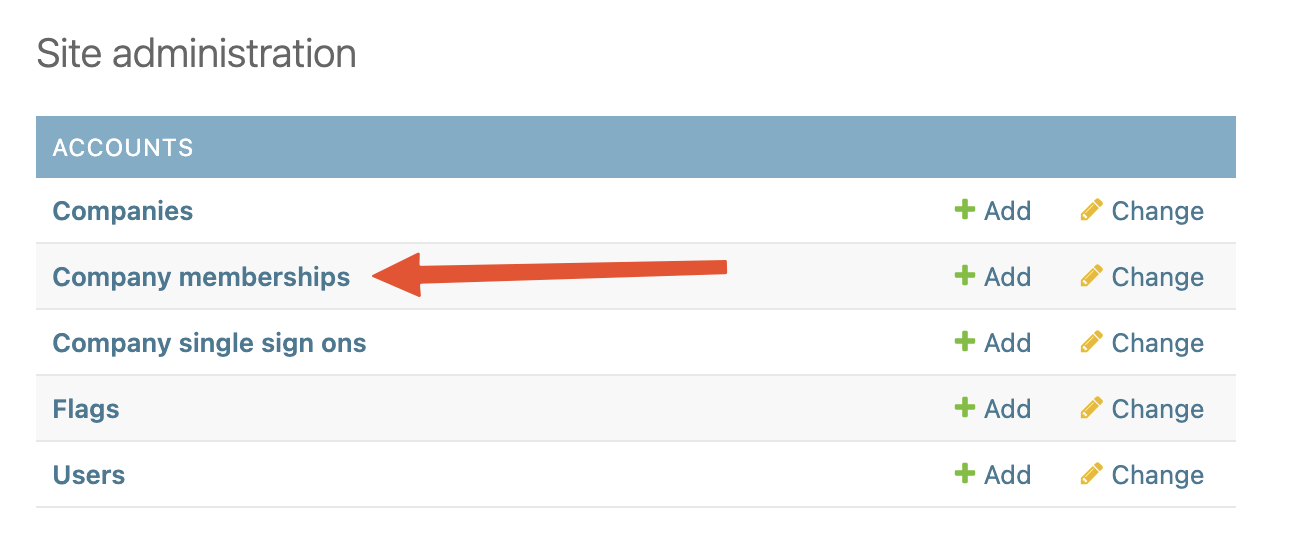
Download the CSV template to update users

Fill out fields in CSV file.
Field name Contents emailUser email, needs to be an exact match geofence_shapeAccepts a GeoJSON containing a polygon that delimits the area the user has access to. geofence_area_namesAs an alternative to the geofence_shape, this can be used to limit users to predefined areas in the platform. Valid area names can be found in Django admin inGEO_DATA→Filter itemssection and names need to be exact matches. See Adding and updating geo filter presets.Fields with _viewand_editGranular permissions control, they accept yesornovalues. Empty colums means no permissions.Go back to the Django Admin page and click
Update permissions using CSV, then select the CSV file in the input component and submit.The system will process the entries immediately and notify you if anything went wrong directly in the page.
CSV permissions converter
The CSV Permissions Converter tool can generate properly formatted permission update CSVs from role-based mappings.