Custom forms
Custom forms are the platform's data-driven system for capturing information during emission event investigation. Instead of hardcoding which fields appear when an operator investigates and resolves a detected emission, the platform defines named, reusable custom forms (groups of fields) in the database. Custom forms are attached to individual events, then rendered and validated dynamically on both the frontend and backend.
Core concepts
A custom form is made of three pieces:
- Form definition — a named form with a description and a
priority(sort order). This is the reusable template. - Field definitions — the individual fields that belong to a form (root cause, notes, dates, etc.), each with a type, validation, and display rules.
- Event form instance — the link between a specific event and a form, representing "this form is attached to this event." The answers themselves are stored on the event's
form_data, keyed by field name.
Because answers are keyed by field_name, field names are effectively shared: two fields with the same field_name — even across different forms — must use the same field_type, and they read and write the same value in form_data. When more than one attached form defines the same field, it is treated as required if any of them require it.
Global vs. operator-owned forms
A form definition has an optional owner (a company):
- Global forms have no owner. They are authored by Aerscape and apply to every operator. These are core platform primitives, not customizations. The seeded global forms are:
- AERSHED — Core event investigation fields (root cause / rejection reason, notes, start and end dates).
- OGMP — OGMP reporting category.
- Operator Feedback — actionability score and free-text feedback.
- Operator-owned forms belong to a single company and are only visible to that operator (plus staff). Use these for operator-specific data capture.
Custom forms are a core part of how the platform models event data — alongside emission states and workflows — not merely an operator customization. Operator ownership is one option, not the defining trait.
Filling out forms in the app
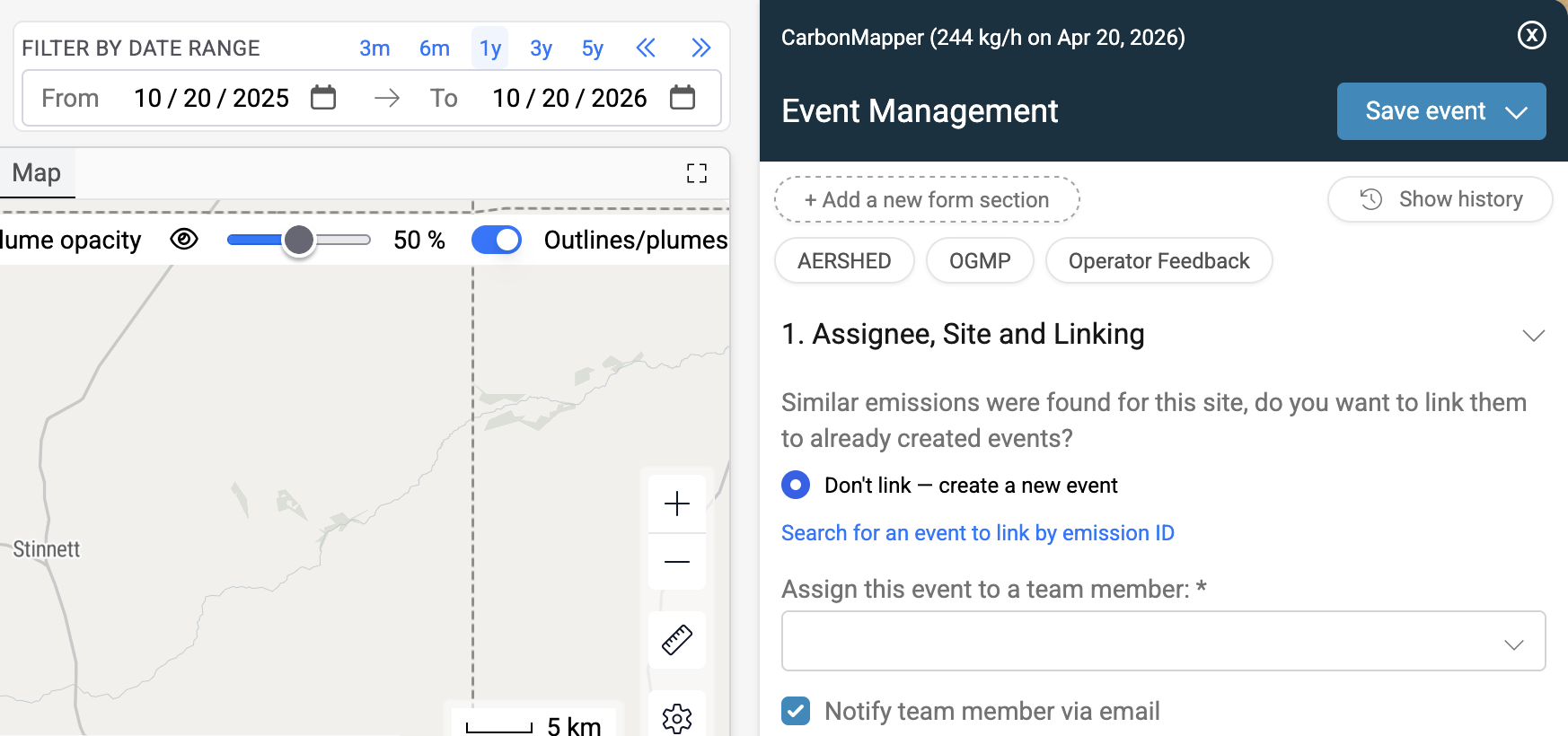
Operator end-users work with forms in the emission form side panel on the Site page while investigating an event:
- Custom forms attached to an event render as grouped sections in the panel.
- Users can attach additional forms with "+ Add a new form section", which lists the global forms plus their company's own forms.
- Custom forms can be added or edited while the event is in an editable status. Adding a form is allowed in New, Work In Progress, and Waiting Approval, but not in Archived, Linked, Rejected, or Completed.
Custom form data also feeds the emission PDF exports and CSV Exports.
Removing forms from an event
A form section can be detached from an event using the ✕ on its pill in the side panel.
- Removal is only allowed while the event is in New, Work In Progress, or Waiting Approval. It is blocked once the event is Completed, Rejected, Archived, or Linked.
- Removing a form prompts for confirmation, because data saved in that form's fields is lost. On removal the platform clears the removed form's field values from the event's
form_data— except for any field names still used by another form attached to the same event, which are kept (see the sharedfield_namebehavior under Core concepts). - Default forms cannot be removed. A company can mark certain forms as default forms (the forms automatically attached to its new events); those show no ✕ and a removal attempt is rejected. To stop a default form from appearing, change the company's default forms rather than removing it per-event.
Field types
Each field has a field_type:
| Type | Purpose |
|---|---|
number | Numeric input (frontend variant star_rating available via options). |
string | Text input (frontend variant textarea available via options). |
choice | Selection from a fixed list of choices; allow_any permits free text too. |
boolean | True/false (frontend variant checkbox available via options). |
date | Date only. |
datetime | Date and time. |
warning | Display-only warning banner shown conditionally. Does not validate or save a value. |
table | A mini-table with its own column definitions. Rows store the base field types. Not validated. |
file | Reference to an event attachment. |
user | Reference to a user. |
Fields are grouped into named sections via group_name and ordered with order (closer to 1 = closer to the top of the form).
field_options
Per-field configuration stored as a JSON object. In Django Admin this field has a visual editor, so you rarely edit it by hand. Common keys:
choices— list of allowed values (forchoice).allow_any— accept free text alongside the choices (forchoice).input_type— frontend widget variant (star_ratingfor numbers,checkboxfor booleans).text_type—textareafor multi-line strings.columns— column definitions fortablefields.
Validation and dynamic logic
Three fields drive conditional behavior. In Django Admin these are edited as raw JSON (they have no visual widget), so the shapes are documented below with real examples.
Two of them — required_condition and suggestion_rule — use a JSON Logic envelope: an object wrapping a JSON Logic rule under logic, so metadata can live alongside it.
{
  "logic": { /* JSON Logic rule */ },
  "comment": "human-readable note",
  "autofill": true
}
There are two variable namespaces you can read inside a rule:
values.*— the current form and event state (e.g.values.formData.<field_name>,values.site). Used for validation and display.emissionRecord.*— the source emission data (e.g.emissionRecord.dataPoint.detectedRate,emissionRecord.site.siteName). Used for value suggestions.
The same condition engine backs the workflows feature.
When validation runs
Form validation runs on every event update, but it operates in one of two modes depending on the target event status:
Strict mode — enforced only when moving an event into one of these statuses:
WAITING_APPROVALCOMPLETEDREJECTED
In strict mode, all requirements are enforced:
is_requiredfields,required_conditionrules that evaluate truthy, and boolean fields with no explicit value. If any fail, the save is rejected with validation errors and the status change does not happen.Non-strict mode — every other transition (e.g. saving progress while in
WORK_IN_PROGRESS). Field values are still cleaned and normalized (dates converted to ISO strings, unknown/display-only keys dropped) and saved, but required and conditional-required checks do not block the save. This lets operators save partial progress and only fully complete the form when they submit for approval, completion, or rejection.
Two things always apply regardless of mode:
tablestructure validation — a table's rows are always checked against its column definitions.- Custom forms cannot be attached to a completed event.
The practical rule: fields are only required at the moment an operator tries to submit the event for approval, mark it completed, or reject it. Before that, the form can be saved incrementally.
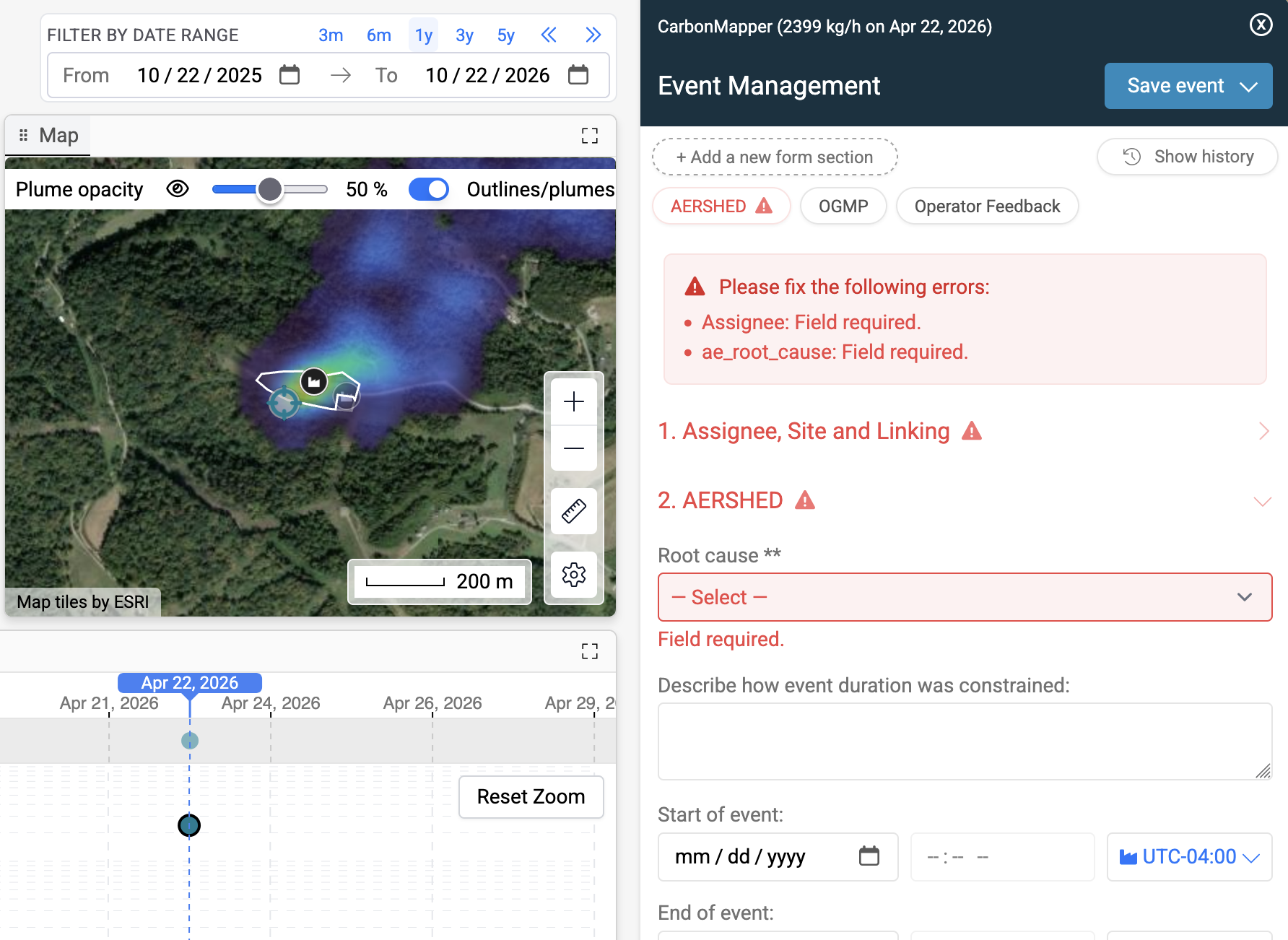
When strict validation fails, the side panel lists the errors and flags the offending sections and fields, and the status change is blocked until they are resolved:
is_required and required_condition
is_required makes a field unconditionally required. required_condition makes it required only when its JSON Logic rule is truthy. Examples:
// Required only when the event has a site (AERSHED: ae_root_cause)
{"logic": {"!!": [{"var": "values.site"}]}, "comment": "Required when the event has a site."}// Required when another form field equals a value (PL956: datetime_of_emission)
{"logic": {"==": [{"var": "values.formData.emissions_found"}, true]}, "comment": ""}// Numeric comparison (a missing trigger resolves to null and does not fire)
{"logic": {">": [{"var": "values.formData.some_number"}, 10]}, "comment": "Numeric comparison."}// AND of two conditions
{"logic": {"and": [
{"==": [{"var": "values.formData.trigger_bool"}, true]},
{"==": [{"var": "values.formData.custom_form_cause"}, "Valve Leak"]}
]}, "comment": "AND of two formData conditions."}display_when
Controls whether a field is shown. Unlike the others, this uses a legacy array format (not JSON Logic — a migration to JSON Logic is planned). It is a list of conditions that are ANDed together; the field is shown only when all match.
// Show only when a boolean field is true (PL956: repair_description)
[{"is": true, "field": "formData.repair_needed"}]// Show only for a real event that has a site (AERSHED: ae_root_cause)
[{"is": "null", "field": "similarEmission"}, {"is": "notNull", "field": "site"}]// Date comparison against an emission field (warning field: warn_start_date)
[
{"is": "gt", "type": "date", "field": "formData.start_date",
"emissionField": "dataPoint.detectionTimestamp"},
{"is": "null", "field": "similarEmission"}
]Vocabulary:
is— one oftrue,null,notNull,gt,lt.field— avalues-relative path (formData.<name>,site,similarEmission, …).type: "date"+emissionField— compare the field against a value from the emission data.
suggestion_rule
Computes a suggested value for a field from the emission data. Uses the JSON Logic envelope, plus autofill:
autofill: true— prefill the value into an empty field automatically on load.autofill: false— offer the computed value as a suggestion only.
// Passthrough of an emission value (site_name_suggest)
{"logic": {"var": "emissionRecord.site.siteName"}, "comment": "siteName passthrough", "autofill": false}// Computed number: detected rate g/h -> kg/h (rate_kg_h_autofill)
{"logic": {"/": [{"var": "emissionRecord.dataPoint.detectedRate"}, 1000]},
"comment": "rate / 1000", "autofill": true}// Tiered choice derived from the detected rate (rate_tier_autofill)
{"logic": {"if": [
{">=": [{"/": [{"var": "emissionRecord.dataPoint.detectedRate"}, 1000]}, 100]}, "High (>=100)",
{">=": [{"/": [{"var": "emissionRecord.dataPoint.detectedRate"}, 1000]}, 30]}, "Medium (>=30)",
"Low (<30)"
]}, "comment": "rate/1000 -> tier", "autofill": true}In the app, suggested and autofilled values appear directly in the field. Below, the "Suggestion Engine Test" section shows a tier and a follow-up flag both derived from the emission's detected rate:
Authoring custom forms
Custom forms are created and edited by staff (and per-operator authors) through Django Admin:
- Log in to Django Admin (see Admin Operations).
- Go to Event management → Form definitions. This lists every form definition with its priority and owner.
- Create or edit a form definition. Set its name, description, priority, and (optionally) an owner company. Leave the owner blank for a global form.
- Add fields via the inline field editor. Fields can be drag-reordered, and
field_optionshas a visual editor. Validation, display, and suggestion rules are entered as JSON using the shapes documented above. - Save.
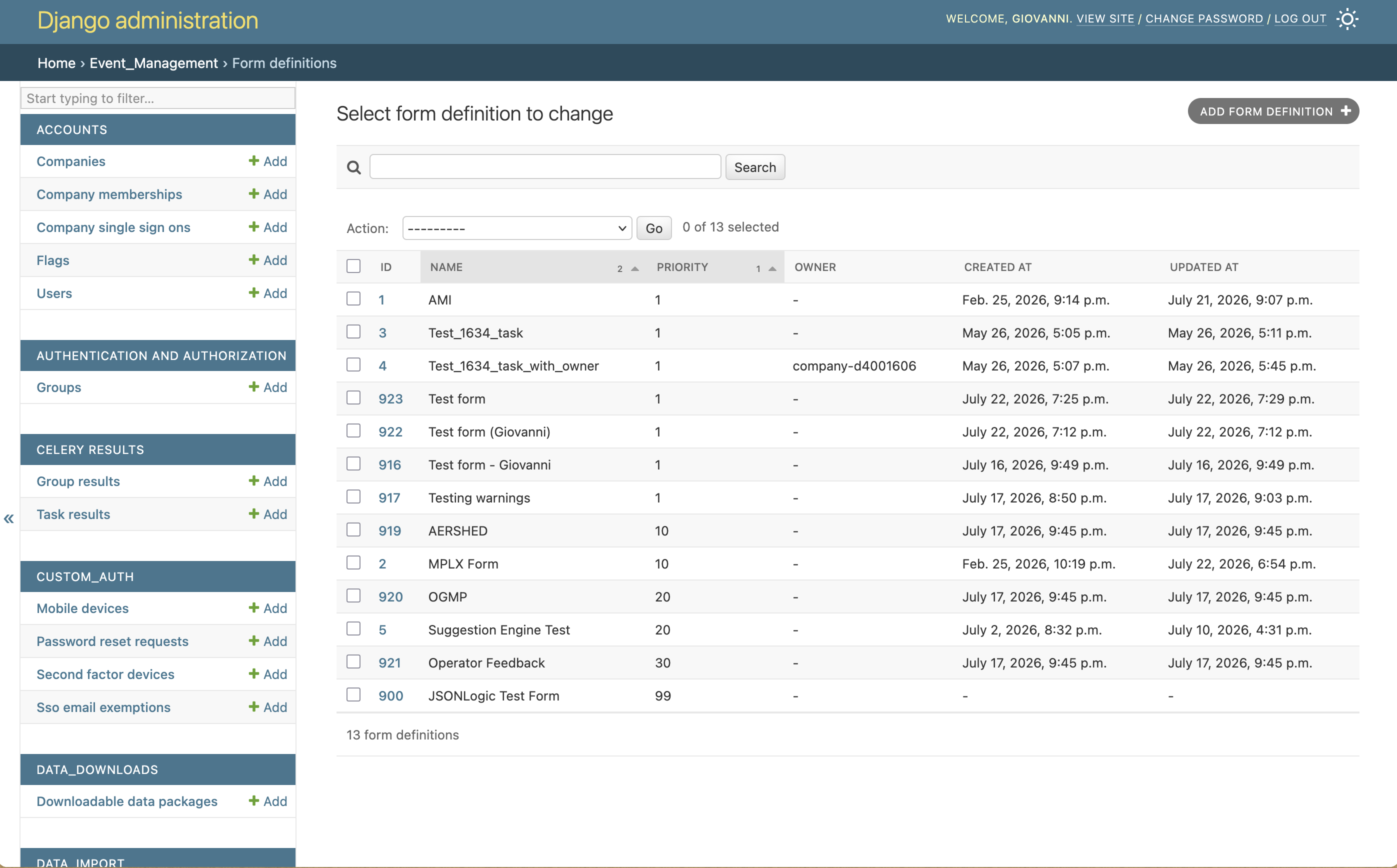
Add and reorder fields with the inline field editor:
Each field has a Field type and a visual Field options editor (for example, adding choices to a choice field), alongside the raw-JSON display_when and validation inputs:
Exporting and importing forms as JSON
A form definition can be copied between environments (for example, from a staging database to production) using the JSON tools on its admin page:
- Download form as JSON — exports the complete form definition, including all of its fields and their options/validation/display rules, as a single JSON file.
- Update form from JSON — replaces the current form's fields with those from an uploaded JSON file (in the format produced by the download button).
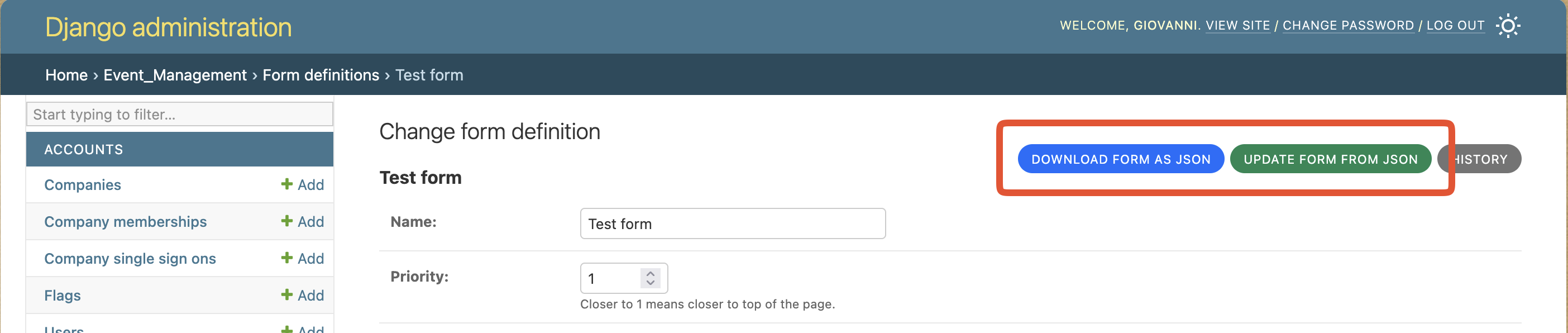
This is the recommended way to move a form between environments or to share a form definition, rather than re-creating its fields by hand.